How to Add a Countdown Timer to Your Emails
Adding an engaging countdown timer to your email campaigns is quick and straightforward. Follow these simple steps to get started
1. Access Your Dashboard
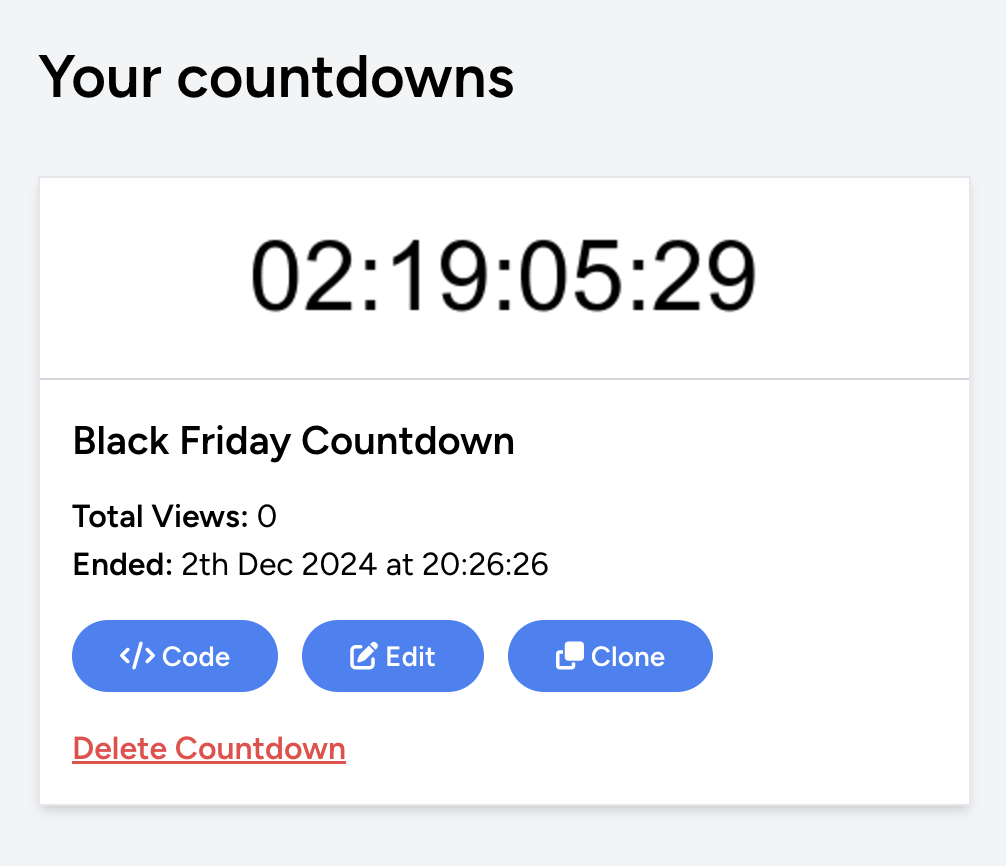
Navigate to your dashboard and locate the 'Your Countdowns' section.
Find the countdown timer you'd like to use and click the 'Code' button to proceed.
2. Get Your Countdown Code
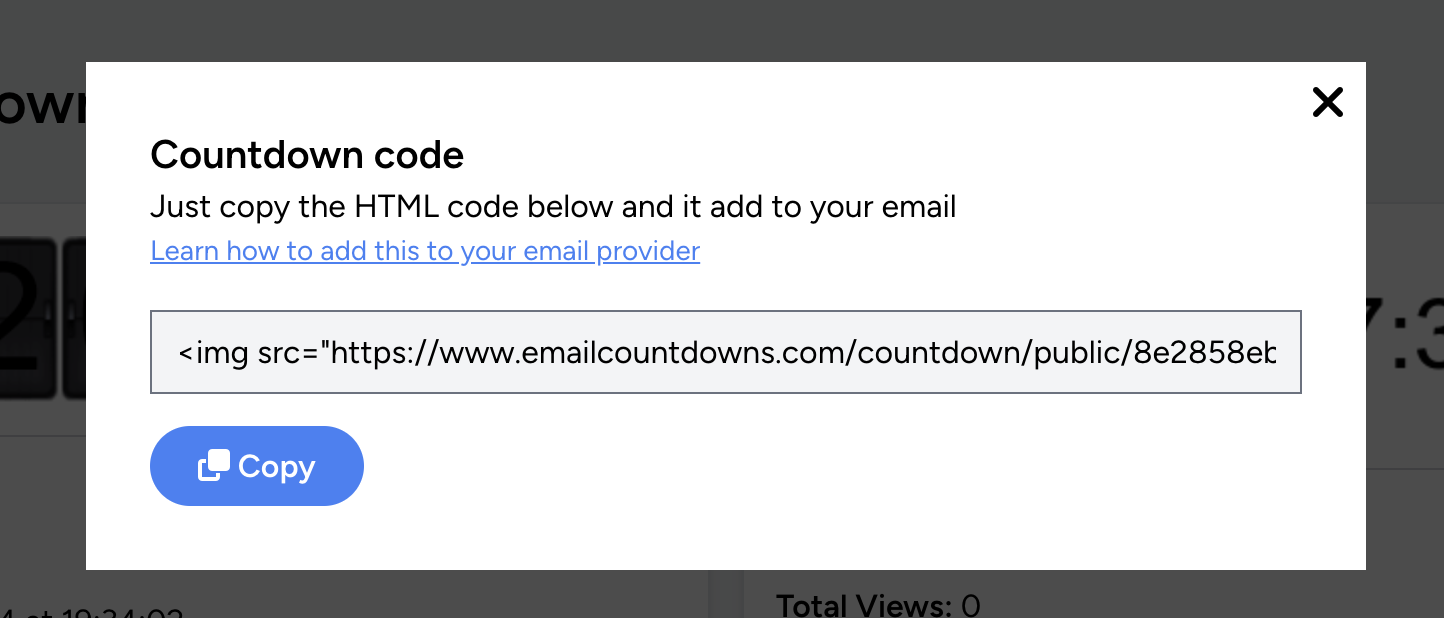
A modal window will appear containing the HTML code for your countdown timer. Simply use the 'Copy' button to copy the code to your clipboard.
3. Insert Countdown into Your Email Template
Open your email marketing platform (such as Klaviyo) and edit your desired email template. Paste the countdown code wherever you want the timer to appear in your email.
4. Launch Your Campaign
Your countdown timer is now ready to go! When recipients open your email, they'll see a dynamic countdown updating in real-time. You can track the performance of your countdown timer through your dashboard, where you'll find view statistics and your remaining usage quota.
Related Articles
- How to Add Countdown Timers in Klaviyo
- How to Add Countdown Timers in Mailchimp
- How to Add Countdown Timers in Hubspot
- How to Add Countdown Timers in Campaign Monitor
- How to Add Countdown Timers in Salesforce
- How to Add Countdown Timers in ConvertKit
- How to Add Countdown Timers in GetResponse
- How to Add Countdown Timers in Flowdesk